Betty Casino Location Errors: Causes and Fixes
On this page
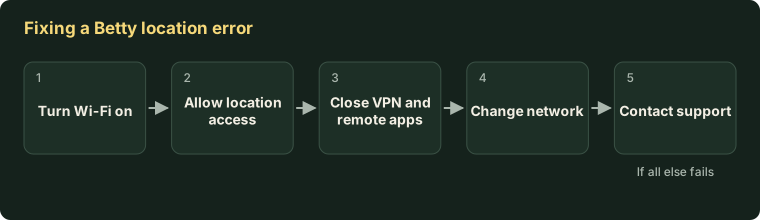
Betty must confirm you are physically in Ontario or Alberta before it opens a game. A location error usually has one of nine causes. The most common are Wi-Fi switched off, location permission denied, or a VPN running.
You do not need a separate location app. Start with the three quick checks below.
Three quick checks that fix most errors
- Turn Wi-Fi on, even if you use mobile data or a cable.
- Allow location access for your browser or the Betty app.
- Close any VPN, proxy or remote-desktop program fully.
Why does Betty Casino need your location?
Betty is licensed province by province. Its licence lets it take bets only from people inside that province. So it runs a geolocation check, which means it uses signals from your device to work out where you are.
The check runs every session, not just at sign-up. This is a regulator rule for every licensed casino. Betty cannot switch it off for you.
What do you need for Betty’s location check to work?
The requirements are short, and one of them surprises people. Wi-Fi must be switched on even when you are not connected to a Wi-Fi network. Your device uses nearby Wi-Fi signals to fix its position.
| Requirement | Computer (PC or Mac) | Phone or tablet |
|---|---|---|
| Internet connection | Required | Cellular service or internet required |
| Wi-Fi switched on | Required, even on a wired connection | Required, even on mobile data |
| Location Services on | Allow in the browser when asked | Required in device settings |
| Separate geolocation app | Not needed | Not needed |
A desktop computer with no Wi-Fi card can struggle here. A phone is the easier device if your computer keeps failing.
Why does Betty say I’m not in the province when I am?
A false “not in Ontario” or “not in Alberta” message means your device could not prove its position. Betty’s help centre lists these causes.
| # | Cause | Fix |
|---|---|---|
| 1 | Wi-Fi is switched off | Turn Wi-Fi on. You do not need to join a network |
| 2 | Location permission denied | Allow location for the browser or app, and turn on precise location |
| 3 | VPN or proxy running | Disconnect and fully close the VPN app |
| 4 | Browser extension that changes location or traffic | Disable it, or try a private window |
| 5 | Remote-desktop software, such as TeamViewer or LogMeIn | Close it completely before opening Betty |
| 6 | Near a provincial border, a lake or a remote area | Move to a spot with more Wi-Fi or cell signals. Switch between Wi-Fi and data |
| 7 | Unstable mobile data, where your IP address keeps changing | Switch to home Wi-Fi |
| 8 | New router or new device | It can take a few days to be recognised. Use another connection meanwhile |
| 9 | Developer options or mock location turned on (Android) | Turn developer options off in settings |
Work down the list in order. The first three account for most cases.
How do you fix a Betty VPN or proxy error?
Betty shows a specific message when it detects location-hiding software. Its help centre quotes two versions:
- “You seem to be using a proxy or VPN. Please ensure you have turned off any VPN or location mocking services to continue.”
- “A VPN or location extension has been detected.”
Follow these steps:
- Disconnect your VPN, then close the app completely. A paused VPN can still trigger the error.
- Turn off browser extensions that alter location or network traffic.
- Reset any changed location settings in Chrome’s sensors or Firefox’s geolocation options.
- Clear your browser’s cache and cookies.
- Open Betty in a private or incognito window to rule out extensions.
- On a phone, force-close the Betty app and reopen it.
Work laptops are a frequent cause. Many run a company VPN or remote-access tool in the background that you cannot turn off. Use a personal device instead.
Which apps block Betty’s location check?
Anything that hides, changes or relays your position can block it. Betty names these types:
- VPN applications
- Proxy services
- Privacy apps that alter location
- Browser extensions that modify location or network traffic
- Location spoofing apps
- Remote-access tools such as TeamViewer and LogMeIn
- Changed geolocation settings in browser developer tools
Having one of these installed is not the problem. Having it running is. Close it fully, then reload Betty.
How do you turn on location permissions?
Betty’s help centre has step-by-step articles for each device. The general route is the same everywhere.
- iPhone: Settings, then Privacy and Security, then Location Services. Turn it on, find Betty or your browser, and allow access with Precise Location.
- Android: Settings, then Location. Turn it on, open app permissions, and allow Betty or your browser.
- Computer browser: when Betty asks for your location, select Allow. If you blocked it earlier, change the site permission from the icon beside the address bar.
Menu names vary a little between versions. If a setting is missing, search your device settings for “location”.
How do you improve location accuracy?
Accuracy improves when your device can see more signals. Stay indoors near your router, or move to a place with stronger mobile coverage. Keep Wi-Fi and precise location both on.
If you are right at a provincial border, the check may never be certain. Moving a short distance inland from the border usually settles it.
Can you play Betty with a VPN?
No. Betty blocks play when it detects a VPN, even if you are inside the province. Turn the VPN off while you play and back on afterwards.
Do not try to use a VPN to appear inside Ontario or Alberta from elsewhere. It breaks Betty’s terms, the check is built to catch it, and you put your balance at risk.
Can you play Betty while travelling?
Only inside a province where Betty is licensed. Outside it you can still log in, deposit and withdraw. Real-money games stay locked until you return.
The rules for each province are in Betty in Ontario and Betty in Alberta. For other provinces, see betty.com vs betty.ca.
Still blocked? What to send support
If nothing works, contact Betty by live chat. Give them these details in your first message to save time:
- The device and its operating system version
- The browser, or the app version
- The exact wording of the error
- Your connection type: home Wi-Fi, mobile data or work network
- Roughly where you are, such as the town
See how to reach Betty support. If the problem is your password or an access code, try Betty login help. For app-specific issues, see the Betty app guide.